How to Root Micromax Canvas Viva A72 and Install Clockworkmod CWM Recovery

If you're on the hunt of finding a detailed guide on how to root Micromax Canvas Viva A72 and and Install Clockworkmod cwm recovery, I think your hunt stops right here. The device features with 5 inch display, 3 megapixel primary camera, 0.3 megapixel front facing camera, slightly outdated Android OS version i.e., gingerbread and 1GHz processor.

The device is not that attractive when you read the specifications however if you consider the price point, you would certainly realize that it is one of the best alternative available under INR 8K.

I can assure you that this will be the safest method of rooting your Micromax Canvas Viva A72. All you've to do is pay close attention and follow each and every step with me.

Before Starting to Root Micromax Canvas Viva A72

• I always recommend people who are preparing to root their device to charge their Android smartphone to 75% or more. That’s an important step because you don't want your device to go empty during the process.

• You need to enable USB debugging and for that go into the settings > applications > developments and enable a check box for the label – USB Debugging.

• Download PC suite USB drivers for Micromax Canvas Viva A72 from here.

• Enable Unknown Sources, Go to Phone settings->Security->tick the Unknown Sources.

• Rooting voids warranty. For instance, if you root your Micromax Canvas Viva A72 and if it is happen to be in warranty, it won’t be applicable thereafter.

Disclaimer: I should not be held responsible for any damage that may cause by following this guide. I would definitely ensure that you get right assistance whenever required through comments.

Steps and Procedure to Root Micromax Canvas Viva A72


1. Download this eroot.exe tool from here. After downloading the file, install the eroot software in your PC.

2. Open the software and Connect the device to PC via USB cable.

3. Now click on root button and rooting process will take sometime to complete.

4. Phone will be rebooted automatically once process is completed successfully and check there will be SuperUser app will be installed in your device.


Install Clockworkmod CWM Recovery on Micromax Canvas Viva A72


1. Download MTKDroidTools zip file from here. Extract it and Run the MTKDroidTools.exe in the folder.

2. Now connect the device to PC and this tool which recognize your micromax a72. Click on Root button at the bottom.

3. Select root, backup, recovery tab and again select the option " To use boot from phone", then press Recovery and Boot button which on left side.


4. A small dialog box will be displayed on screen and it asks for Automatic CWM Recovery and Press YES button.

5. Again dialog shows Flash this file through flashtool and Press NO.

6. In this window Click Yes button when asked for Install created recovery to phone.

7. At the final step To check if recovery works press Yes button when asked for Reload phone in recovery.

That's it you've successfully installed CWM recovery in your Micromax a72 device. Now you can flash cyanogenmod roms Android 4.0 ICS and Android 4.1 jelly bean.

How to Root Lava 504Q and Install Clockworkmod CWM Recovery

Today tutorial How to Root Lava 504Q and Install Clockworkmod cwm recovery easily. Lava 504Q is a mid-range Android smartphone which is being sold at the price of INR 13500 approximately. At this price tag, the specifications of Lava 504Q are really very promising. It is packed with 1.2GHz quad core processor, 5 inch HD IPS display, 4GB ROM, 1GB RAM and Android 4.2 jelly bean. There is also an 8 megapixel camera at the back which is accompanied by BSI sensor and LED flash. The 2 megapixel front facing camera is useful for the video calling using 3rd party apps such as Skype.
Before You Begin

Enable USB debugging from settings > developer options > enable USB debugging.

* In case you didn't find developer options in settings page then Go to Settings > About Phone > Scroll till you find Build number > Start tapping on 7 times and it shows message like " You are now a developer".

• Please charge your Lava 504Q to 75% or more.

• No one is responsible if anything goes wrong and you brick your device.

• Rooting removes warranty.

Steps to Root Lava 504Q

1. Download MediaTek MTK6589 Drivers or Mobistel Cynus T1 Drivers from here. Install this required drivers in the PC.

2. Again download the Auto Root Tool from here. Extract the contents of Auto Root file on your computer.

3. Open the extracted content folder and Right click on Run.bat file and Select the option " Run as Administrator" to start the process.

4. Now, connect your mobile to the computer using USB cable and ensure that USB debugging is on.

5. You'll be asked to press any key to continue.

6. So, press any key and wait for some time as it starts rooting your Lava 504Q.

Once it has finished rooting your Lava 504Q, you can restart your device manually.

That’s it. Here ends the rooting process of Lava 504Q. The next guide talks about how you can install custom CWM recovery on this smartphone.

Steps to  Install Clockworkmod Recovery on Lava 504Q

1. Download the Recovery.img CWM 6.0.3.3 for Lava Iris 504Q from here.

2. Copy the recovery.img file into your Phone SD card.

3. Download the app from here and install Mobile Uncle MTK tools APK on your Phone from here.

4. Start the app and grant Superuser permissions.

5. You have to click on recovery update menu and Select this recovery.img file that you've transferred earlier.

6. This will flash custom ClockWorkMod recovery on your mobile phone.

That’s it. You've now installed recovery on Lava 504Q.

If you want to verify that you've successfully rooted your device, you can download and install an app called Root Checker from Google Play Store. If you're stuck anywhere, comment and I'll do my best to reply.

How to Root Micromax Canvas 4 A210

Proud owner of Micromax Canvas 4 HD A210? I'm sure you would be wondering how you can root this beast with minimum risk and efforts. If you’re one such guy who is looking for this type of guide then hold your nerves. In this guide, we are gonna take a look at how to root Micromax Canvas 4 HD A210 easily on build version number ALPS.JB2.MP.V1.2.

The Micromax Canvas 4 HD A210 packs Android 4.2.1 jelly bean, 1.2 GHz quad core Cortex A7 processor, 1 GB RAM, 13 megapixel primary and 5 mega pixel secondary front facing camera. The phone is damn heavy on the specifications and the price factor makes it an awesome option for Android lovers.

Enough talking about the hardware specifications of this device. Let’s now see how we can root it without worrying a lot about bricking.
Disclaimer: We are not responsible if anything happens to the device. Do it as your own risk.
Prerequisites:

• Please ensure that you've charged your android device to 75% or more.

• You also need to enable USB debugging from Settings > development > USB debugging. In case you didn't find developer options in settings page then Go to Settings > About Phone > Scroll till you find Build number > Start tapping on 7 times and it shows message like " You are now a developer".

• Please find an option called – “Verify apps over USB” under the same settings and disable it.

• Rooting your Micromax Canvas 4 HD A210 would put it outside of the warranty.

• Please understand that nobody should be held responsible if you brick your device. I would do my best to get it back however, you got to pay close attention to avoid bricking it.

Steps and Guide to Root Micromax Canvas 4 HD A210

1.Download Micromax Canvas 4 A210 HD Rooting Tool from here. Extract the zip file and explorer the folder you will get the files which are important in this process.

2. Open this folder and you will see file name called Run.bat. Right click on Run.bat and select the option "Run as Administrator".

3.  A command prompt console window will appear on the screen.

4. As soon as you’re sure about this, Connect your device to the computer using USB cable. Press any button to start the process.

5. You might just experience several reboots on your device. Don’t panic.

6. Also, make sure that your remains connected and turned on in between this process.

7. Once it has completed rooting, you can look for an app called “SuperSU”.

8. If the app is present on your Android smartphone, you've successfully rooted your device.

9. If the app isn't available on your Micromax Canvas 4 HD A210, you got to follow all the process from step 1.

How to Unroot Micromax Canvas 4 HD A210


• Unroot the Micromax Canvas 4 HD A210 is pretty simple.

• Start this newly installed app called SuperSU.

• Go into the settings of this app and go to the full unroot.

• Your device will reboot and you’ll now have an un-rooted Micromax Canvas 4 HD A210 in your hands with warranty back.

If you've any problem or doubt or query regarding rooting of your Android smartphone, please feel free to comment below. If this article has helped you, please spread the word and help others.

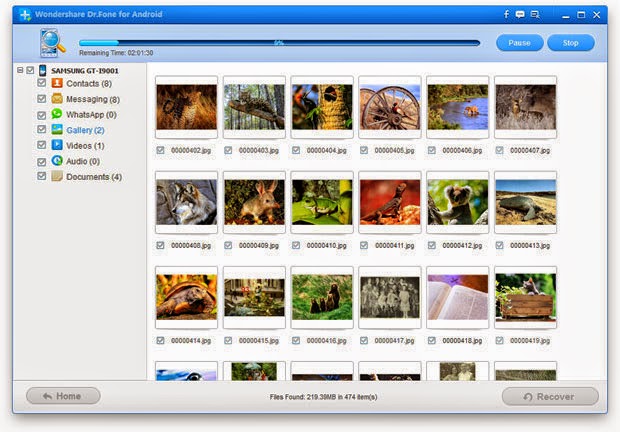
Dr.Fone For Android - The Best Data Recovery Software

There are many software's available in the market to recover your lost data of smartphone. Many of them are freely available and most of them are paid versions. Freely available software is not much capable of restoring lost data back. But from paid ones which one you should buy, Dr. Fone is the answer. Through this software you can recover your almost 100% deleted data. Files which you have deleted accidently or formatted from the device. Those deleted files still remains on the storage memory of your smartphones.You can recover those files with the help of Dr. Fone. 

Dr. Fone is ranked world’s no.1 quick, safe and simple Android data recovery software to recover lost data like contacts, pictures, text messages, audio files, documents, videos, and many more.
Using Dr. Fone For Android you can recover your lost data in just 3 simple and easy steps as:

1. Connect your device.

2. Scan your device. Preview all the contacts, messages, WhatsApp history, photos, documents, and other data that are available for recovery. Then select just the files that you want to restore.

3. Recover your data. And your lost data is recovered.

You can recover your all types of Android files through this software whether it is Contacts, Message, Photos, Videos, Audios and Documents, Even you can recover your Whatsapp data also.

This software is supportable for almost for 2000 + Android platform running devices i.e. smartphones, tablets from all when known brands such like Samsung, Google ,HTC, LG, Sony, Motorola, Huawei, Zte and many more brands.

Among these you can recover Contacts, Camera Roll, Notes, Reminder, Messages Photostream, Call History, Voice Memo, Voice Mail, Calendar,Safari Bookmark,WhatsApp History, Photo Library, App Video, App Photos and App Documents.

For android it comes with compatibility on Windows Operating System.

You can go to the product page of Wondershare Dr.Fone for Android.

Or you can use Trail Version. In trial version user can only recover lost data up to 5 Android smart phones and the recovery success varies with loss circumstances and device condition.

Download Olx App for Android Devices

As you all know OLX is one of the best India's largest marketplace available for the people, who usually sell their stuff easily in the online just by posting free classified ads. While comes to the benefits of OLX there are a lot of things i need to explain to the people who don't know most of them. Users can search their ads based on location like you want to find the products on specific location in India, then just select the option right above top of the page. Sellers can also add their full description of the product with high quality photos which they want to sell and it will help the buyers to identify the product condition like scratches and broken small things. Recently they released a olx free app for the mobile users, now they can surf product ads in mobile itself and it will save a lot of time, there will be no need to open the full desktop website.
Now OLX for android app helps the users to connect the website at anytime. With single touch users can post free ads, attach photos, add information, able to ask queries to seller incase if you want more information about the product. With olx people can increase their online business with simple strategy. Olx connects with most popular social network sites like Facebook, Twitter and Google Plus. Sellers can add their geographical location with inbuilt embedded maps and it help buyers to locate the seller location without any hassles. While downloading the olx application make sure that you have proper internet connection at least 256 kbps. Browsing olx on mobile is great experience easy to search the products on based on your interests like mobile phones, real estate, Home & lifestyle, vehicles, jobs & services. Hurry up and download the free olx app for android devices from Google play store.

How to Root Moto G with Superboot

Developers are pretty interested in Motorola's Moto G android device, they created a simple tool named superboot for rooting both Moto G single and dual sim devices. Currently the phone is loaded with Android 4.3 Jelly Bean OS and motorola promised it will get an latest Android 4.4 Kitkat Update in 2 months. Once users rooted their device, they can get full access on  the device and also privilege to take backup of entire OS. Incase of any malfunction happened to the phone, you can restore the Android OS with that help of titanium backup application. There are many things you can do like installing custom ROM's, kernel modification gives extra performance and also unlocking bootloader. Don't be afraid this rooting tool supports all kind of firmware and build versions which are available in different region moto g devices.
Rooting will voids the warranty and you will no longer receive OTA updates. But you can get warranty by installing stock factory OS again.

Disclaimer: Please note that neither we nor the developer is responsible for any damage your device might incur during this process. Please proceed at your own risk.

Requirements:

1. The rooting procedure only applicable for  Motorola Moto G XT1033 and XT1032 variants. Don't try it on any motorola device, it will leads to serious damage.

2. Minimum battery should be 50% mandatory.

3. For Enable USB debugging on your Moto G. You have to navigate to Setting>About Phone, there tap on Build Number many times until developer option is enabled. Then you can get access to the developer options and there you can enable USB debugging.

Warning: Before starting the rooting process, your device must have unlocked the bootloader. For unlocking the bootloader go to motorola website. If you still want to root, then i'm not responsible if anything happens to the device.

Steps and Guide to Root Moto G using Superboot

1. Download rooting tool superboot from here. After downloading the zip file extract it using winrar.

2. Now turn off the device. 

3. Again power on the device while holding the volume down button to enter into fastboot mode.

4. Open the extraction folder, there you can see superboot-windows.bat file. Right click on the file and select Run as Administrator.
5. Connect the device to PC via USB cable.

6. Once your device is recognized by the PC. Rooting process starts automatically and it will be completed in 2 or 3 minutes.

7. In case you are using Mac PC, then you have to open terminal and go to the extraction folder. Type the following commands

chmod +x superboot-mac.sh
sudo ./superboot-mac.sh

8. For Linux users, open the terminal window and go to the extraction folder. Type the following commands one by one 

chmod +x superboot-linux.sh
sudo ./superboot-linux.sh

9. Once process is completed and reboot the phone.

Cloud Hosting and its Benefits

Before going deep into the Cloud Review and its benefits, I should first explain the cloud computing techniques to all my readers so that they could better know how the cloud hosting and cloud servers work. All of you will be well acquainted with the dedicated servers which have the fixed single server software which is compatible to the designated hardware only.

Hostgator Discount – hostgator coupon 2014
However, in case of cloud servers, there are a huge number of server softwares which adjust automatically when a particular hardware fails to handle the visitors. You would also be aware about the cloud computing nowadays and small businesses are rapidly shifting from the traditional dedicated servers to the cloud servers. 

And the cloud servers are provided by many hosting brands which also offer more features. So, here are the benefits of choosing cloud hosting to grow your business. Hope you will understand my point of view. Have a look.

Cloud Hosting Benefits

Stability & Security

Since, this is the major aspect of the businessmen who want to keep their business safe, secure and stable on the web from the threats and hackers, cloud computing offers much stability and security to the users.

Cloud hosting never relies on the hardware and thus if any hardware problems occur, no worries, cloud server will be automatically handling the problem so as to provide stability to your blog. Other cloud servers are independent from yours’. So, if another person overloads his/her cloud server, it will not affect yours.

Affordable

Since, the traditional dedicated servers are very high priced;the cloud hosting can be a better choice which costs as much as one third of that of dedicated servers.

Cloud hosting servers are said to be having the best stability/ cost ratio.

Flexibility & Scalability

The term flexibility refers to the times when a server experiences a huge amount of traffic and gets overloaded. In that case, the traditional dedicated servers, fail but cloud hosting servers are quite flexible as the servers automatically create applications which work to handle the traffic by splitting the traffic into various virtual machines.

Moreover, if a person wants to choose the next level cloud hosting (i.e. upgrading the cloud hosting with more CPU, RAM, memory and disk space configuration), he/can do it very fast and your blog and data will be shifted to next level in less time. Thus the scaling feature is also significant in the cloud hosting.

Easy To Use

Cloud servers do not need a professional IT team to handle the things. It is very easy to use for the people for the welfare of their business as cloud hosting provides many tools which are responsible for the auto-managing and auto-setting the blogs whenever required.

Energy Efficient

Cloud hosting has the servers which consume 30% less energy than the dedicated ones. Thus cloud hosting are more eco-friendly than the others and thus helping the climate authorities in cutting the carbon emissions and thus helping in the reduction of the greenhouse effect.

Disaster Recovery

Since, if a dedicated server fails and to recover your data, you need to again install the operating system, restore the files and databases from the backups, it is very time consuming usually in hours.

On the other hand, if a cloud server fails,the requirement of powering on the cloud server backup image is there and the cloud server restores the data in minutes.

In addition to the above features, cloud hosting also has higher speed than the dedicated servers.

I hope the above Cloud hosting benefits are well understood by all and now the reason of SMEs shift to cloud hosting is justified undoubting. Top 10 cheap hosting 2014 also explained in previous post If you have any queries regarding benefits of cloud hosting or some other context, do comment below.

How to Root Micromax Funbook Infinity P275

The main factor at which Micromax is doing most of its business is the price. They have released number of Android smartphones at reasonable price and exceptional hardware specifications and that’s what driving force for the increasing number of sales is. The Micromax Funbook Infinity P275 is also the outcome of this experiment which has been very successful so far.

If you're searching for an in-depth steps guide on how to root Micromax Funbook Infinity P275, I would recommend you to stop right here. Before we get starting with the root guide, let me give a quick overview of the specifications of this Android tablet.

The tablet packs Android 4.0 Ice cream sandwich, 1.2 GHz processor, 512MB RAM, Dual Mali 400 GPU and decent battery backup.
Rooting can be dangerous and your phone can void your warranty. If anything goes wrong then you may end up with a “Bricked” or “Damaged” device. All the tutorials are collected from various sources and our main motive is to provide you the best. If you will need to claim the warranty in the future, neither developers nor www.techdraginfo.blogspot.com will be responsible for that. So follow the tutorials on your own risk.

Before You Start

• You're following this tutorial on your own risk and nobody should be held responsible for any damage.
• I recommend you to start rooting your device only when you've 75% or more battery left on your device.
• Rooting voids warranty and same is the case for this device too.
• Rooting doesn't really removes anything from the internal or SD card memory however, you should backup all the important stuff from your mobile before going ahead with this guide.
• You can use an app called Super Backup to take backup of SMS and contacts.

Steps to Root Micromax Funbook P275

1. Download Micromax Funbook Infinity P275 rooting package from here and extract the contents of file on your computer.

2. At this point in time, you need to make sure that you've enabled USB debugging on your tablet. You can enable it by going into the settings > applications > developer options.

3. Change the Connectivity Option from MTP to Mass Storage in Settings --> Storage --> Options --> USB computer connection.

4. Now open the extracted folder, you will able to see runme.bat file. Double click on RunMe.bat file and subsequently, Linux users can click on RunMe.sh file.

5. Choose an 1 option called Normal from the list and hit enter to proceed.

6. It will ask you connect the tablet to the PC. Connect the device and the rooting process will be started.

7. You would be asked for data restore file and encryption password. Ignore this message about encryption password and click on restore my data.

8. After sometime, you'll see an option – “Press any key to continue”.

9. You now need to wait for some time so that the device restarts itself automatically. I would recommend you to wait for more time to do its automatic restart.

Incase you wanna unroot the Micromax Funbook Infinity P275 tablet simply selection option x in the tool and follow onscreen instructions.

How to check if you've rooted your device successfully or not?

Please open app drawer and look for an app called Superuser. If the app is present in app drawer, you can certainly come to the conclusion that you've successfully rooted your Android device.

How to Root Micromax A91 Ninja

Micromax A91 Ninja is a successor to the Micromax A89 which is packed with comparatively higher battery backup and good camera. Let's see the specs of this device, it is loaded with 1GHZ dual core processor and 512MB of RAM which is enough for decent gaming. Till now the device got pretty good reviews from users, the good thing about the phone it is available under 8K price in india. Well it's time to end the discussion and get into real thing that is rooting the Micromax A91 Ninja device and getting maximum performance out of it. Seems that developers are little interested in this device and developed a rooting tool called Bin4ry and this tool will help you to root the phone easily without any issues.

How to Root Samsung Galaxy S4 GT-I9500 and Install CWM Recovery

Samsung Galaxy S4 has got credible attention throughout the world due to its excellent hardware specification and other useful software improvements. Although the phone is being criticized for plastic material on its exterior body, there aren't any other downsides of it. The following article will help you how to root and install custom clockworkmod CWM recovery manager on Samsung Galaxy S4 GT-I9500 International version. Seems that developers are very much excited to unleash the extra performance by overclocking even though the device is already loaded with powerpack Exynos  5 chipset 1.6 GHz Octa core processor. This rooting tutorial will work on all Android 4.2.2 Jelly Bean firmwares and ROM's, so there will be no more kernel issues. After doing rooting and installing custom recovery on the device users can flash Cyanogenmod 10.1 based ROM's.

How to Root Karbonn Smart Tab 8 Velox and Smart Tab 10 Cosmic

Today our tutorial How to Root Karbonn Smart Tab 8 Velox and Smart Tab 10 Cosmic with crystal rooting tool. If you look at the current tablet segment in Indian market then you would realize that two Karbonn Smart tab 8 velox and smart tab 10 cosmic are indeed great Android 4.1.1 Jelly Bean devices for the price. Both these tablets are performing exceptionally well due to the dual core processor. There is small difference between them in terms of camera since Karbonn smart Tab 8 Velox is packed with 2MP snapper whereas Tab 10 Cosmic has 3 MP snapper. Most of the hardware specifications of these two tablets are very much similar except the fact that smart tab 8 velox lacks dedicated GPU.

Install Facebook Home APK on any Android Devices No Root Required

Today our tutorial how to Download and Install Facebook Home APK Application on any Android Devices No Root Required. Everyone excited with the launch of new Facebook Home Application on Android which is available on Google Play Store. I have seen people are looking to install the application on their devices. But problem comes here right now the application supports only limited android devices like HTC One X, One X+, Samsung Galaxy S III, Samsung Galaxy Note II. What about other devices ? they are not worthy to run this simple launcher. Although if you try to install this application manually on the device, you will get message like this “ Your device is not supported yet. You'll will get a notification when Facebook Home is ready for your device “. Don't worry we have found a way to install this application and easily working without any root access or no need of changing build.prop values. Well an xda member modded this facebook home application in order to support all Android 4.0.4 ICS and Android 4.2 Jelly Bean devices.

Best Covers and Cases for Apple iPhone 5

After searching more covers and cases for iPhone 5. Today I compiled the list Top 5 best covers and cases for Apple iPhone 5. So you brought this shiny new iPhone 5 and you're hopping here and there with it in your old pants. Suddenly the unthinkable happens! The phone drops from your old and loose pants making you regret the joy of your new iPhone. Here comes the need of protection. I'm going to talk about my top 5 favorite cases currently available for the iPhone 5 which will enable your phone to survive those terrible situations which in the end can make you cry. This two things is definitely needed for every iPhone 5 user, one will give you sexy look with apple logo backside and other will protect the device from accidental damage. All this cases and covers are available for USA and UK via Amazon Online store.

How to Unlock Bootloader Verizon Samsung Galaxy S3 I535

Today our tutorial How to Unlock Bootloader for Verizon Samsung Galaxy S3 I535 on Android 4.0.4 ICS. We already know that by default Verizon Wireless 4G LTE Samsung Galaxy S3 i535 comes with locked bootloader but the thing is users want to unlock it to get some benefits from the device. By unlocking the device will voids the warranty and there is also risk of bricking the phone. Don’t worry if you followed our steps carefully then you can avoid the bricking problem. And you can also get warranty back once you relock the bootloader to original stock state. There is an xda forum member guy named as AdamOutler created a simple app called VZWGS3 EZ-Unlock (Bootloader) which will help you to unlock the bootloader in the phone itself by following easy instructions. So chances of risk is very less and also there is no need of flashing via Odin or clockworkmod cmw recovery mode.

Root Verizon Samsung Galaxy S3 I535 Install Clockworkmod Recovery

Today our tutorial How to Root Verizon Samsung Galaxy S3 SCH-I535 and install clockworkmod recovery on latest Android 4.0.4 ICS. Verizon launched Samsung Galaxy S3 lately but seems like this phone has attached too much customers due to Verizon high speed LTE 4G data network in USA. XDA developer forum member eMpTy43 has released the GS3DebugFSRoot tool to root Verizon SGS3 easily by following on screen instructions. With that simple tool you can gain root access on your device and then install the clockworkmod CWM recovery. On clockworkmod manager you can flash different custom roms like Android 4.0 ICS and Jelly Beam 4. 1Cyanogenmod, MIUI and many more. Tweaking the kernel will get more performance to the device by running multiple number of apps without any lag. This is a complex procedure but we have tried our best to simplify it.

How to Root Samsung Galaxy S Advance I9070 Gingerbread 2.3.6 All Firmwares

Today our tutorial How to Root Samsung Galaxy S Advance I9070 on all Android Gingerbread 2.3.6 firmware versions. Check the latest baseband firmwares ZSDL1, DXLD1, DDLI1, DXLD2, PXXLD2, DDLD4, JPLD3, ZSLE4, XXLD1, XXLD2 and XXLE2. If your device is running with anyone of above firmwares then you can root the device easily by following my guide. Samsung Galaxy SII is successor of Galaxy S but Samsung launched a modified form and named it as Galaxy S Advance I9070. This is a mid range Android Gingerbread phone with some added features like Dual core 1 GHz processor with Mali 400MP GPU.  With that features Samsung wants make Galaxy S Advance device better than Galaxy S and comparable to Galaxy SII. We are here with a detailed guide to help your with rooting your Galaxy S Advance I9070. Samsung has not released any firmware updates yet to update to ICS. But if you root your phone and install clockworkmod CWM recovery then you can install Custom Android 4.0.4 ICS ROM.

Fix Camera and Audio Galaxy Ace CM9 Android 4.0.4 ICS Update

Today our tutorial How to fix both Camera and Audio functions on Galaxy Ace S5830 Cyanogenmod 9 CM9 Android 4.0.4 ICS firmware update. I have seen most of the Galaxy Ace users who recently installed custom based Android 4.0.4 Cyanogenmod 9 ROM facing problems like camera and audio mic features were not working properly. So I decided to help them in order to solve their issues with small update released by maclaw an xda forum member. After installing the small update, now your Galaxy Ace camera will capable to take photos and record videos with audio. Now you can play and listen music songs with outstanding audio quality.
Requirement: Make sure that you must installed Cyanogenmod 9 Android 4.0 ICS Rom on your device. If not installed then go through this tutorial from here.

Steps and Procedure to Fix Camera and Audio on Galaxy Ace CM9 Android 4.0.4 ICS Update

1. Download the acecamera.zip file from here to PC.

2. Connect the device to PC via USB Cable. Copy the downloaded acecamera.zip file to phone SD card storage.

3. After copying the file disconnect the device from the PC.

4. Turn off the device and boot into recovery mode. For that press and hold menu center button and power button together simultaneously. Once recovery mode is appeared on the screen then you hold off those buttons.

5. In custom recovery mode select ‘install zip from sdcard’ and browse through sd card and choose the acecamera.zip file. Click yes to install the file it will some 1 or 2 minutes to complete the process.

6. Now go back to main recovery screen and reboot the system.

Update Galaxy Tab 10.1 Wi-Fi P7510 Official ICS 4.0.4 UELPL Firmware

Today our tutorial How to Update Galaxy Tab 10.1 Wi-Fi GT-P7510 with Official Android ICS 4.0.4 UELPL Firmware. Samsung Galaxy Tab 10.1 was neglected by Samsung for few months as there were lots of launch and Samsung has lined up new series of Galaxy Tab 2 and Note 10.1. Samsung has recently released the latest Android 4.0.4 Ice Cream Sandwich upgrade for Galaxy Tab 10.1. If you have rooted your Galaxy Tab then this procedure will unroot your Galaxy Tab. This guide will help if you have soft bricked your Galaxy Tab and want to restore the stock firmware rom. The UELPL update was rolled out officially via both OTA over the air and Kies for United States (US) Samsung Galaxy 10.1 Wi-Fi P7510 tablet variant on August 2012. Although the update is available for USA people but other region users can also install this stock rom manually with Odin flash tool. Android ICS 4.0.4 IMM76D.UELPL baseband build number for Galaxy Tab 10.1 is a fully fledged ICS firmware with lots of add-ons and loaded with new apps like eBook reader, galaxy s3 like weather widgets.

Update Galaxy Tab 7.7 P6800 Official ICS 4.0.4 XXLQ1 Firmware

Today our tutorial how to Install and Update Galaxy Tab 7.7 P6800 with Official Android ICS 4.0.4 XXLQ1 Firmware. Samsung Galaxy Tab 7.7 was a great tablet features with high end specifications and it offers you both Wi-Fi and 3G connectivity options. Although it is from 2nd Generation Tablet line up but it looks like Samsung still has interest in it and want to keep it updated. Recently Samsung has launched the Android 4.0.4 Ice Cream Sandwich ICS update for Galaxy Tab 7.7. The new update dubbed as XXLQ1 baseband firmware version. It got premium pack exclusive for Tab 7.7 to resolve many issues that customer were facing. The XXLQ1 firmware was rolled out via OTA over the air and Kies for United Kingdom (UK), Austria, Belgium, France, Germany, Hungary, Italy and Spain. This firmware can be used other regions too nothing will be happen. Galaxy Tab 7.7 customers were regularly complaining about the crashing TouchWiz launcher and Play Store. Beside that other apps were facing frequent crashes. The new ICS update addresses almost all of the reported bugs and thus is a must have update for Tab 7.7 users. We have created a detailed process that will guide you through flashing the update manually.

How to Root HTC Evo 4G LTE Unlock Bootloader CWM Recovery

Today our tutorial How to Root HTC Evo 4G LTE Unlock bootloader and install clockworkmod cwm touch recovery on Android 4.0 ICS firmware build versions 1.22.651.1 and 2.13.651.1. HTC Evo 4G LTE was announced by Sprint in March 2012 has already created a huge customer base in United States. One of the most sold phone on Sprint network, featuring a 1 Ghz Scorpion processor with Adreno 200 GPU which makes it very comparable to Nexus S 4G. Recently the device got official Android 4.0.3 Ice Cream Sandwich ICS update from HTC. Now you can root, install clockworkmod recovery and install Android ICS based custom ROM’s. On this tutorial we are providing detail procedure to root HTC Evo 4G easily with the help of simple rooting tool. This guide has been taken from the XDA developer WIKI and all thanks to them.