Showing posts with label Android. Show all posts

Dr.Fone For Android - The Best Data Recovery Software

There are many software's available in the market to recover your lost data of smartphone. Many of them are freely available and most of them are paid versions. Freely available software is not much capable of restoring lost data back. But from paid ones which one you should buy, Dr. Fone is the answer. Through this software you can recover your almost 100% deleted data. Files which you have deleted accidently or formatted from the device. Those deleted files still remains on the storage memory of your smartphones.You can recover those files with the help of Dr. Fone. 

Dr. Fone is ranked world’s no.1 quick, safe and simple Android data recovery software to recover lost data like contacts, pictures, text messages, audio files, documents, videos, and many more.
Using Dr. Fone For Android you can recover your lost data in just 3 simple and easy steps as:

1. Connect your device.

2. Scan your device. Preview all the contacts, messages, WhatsApp history, photos, documents, and other data that are available for recovery. Then select just the files that you want to restore.
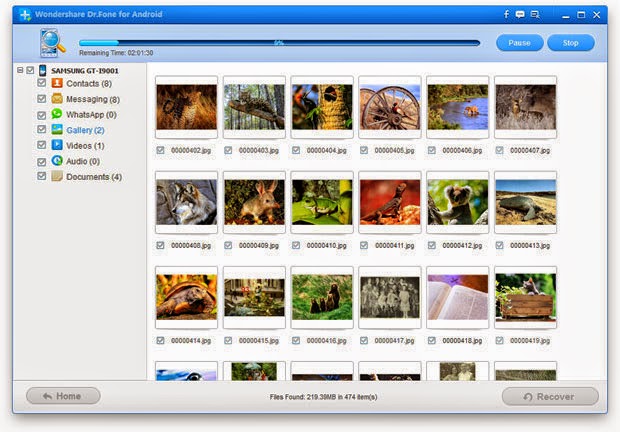
3. Recover your data. And your lost data is recovered.

You can recover your all types of Android files through this software whether it is Contacts, Message, Photos, Videos, Audios and Documents, Even you can recover your Whatsapp data also.

This software is supportable for almost for 2000 + Android platform running devices i.e. smartphones, tablets from all when known brands such like Samsung, Google ,HTC, LG, Sony, Motorola, Huawei, Zte and many more brands.

Among these you can recover Contacts, Camera Roll, Notes, Reminder, Messages Photostream, Call History, Voice Memo, Voice Mail, Calendar,Safari Bookmark,WhatsApp History, Photo Library, App Video, App Photos and App Documents.

For android it comes with compatibility on Windows Operating System.

You can go to the product page of Wondershare Dr.Fone for Android.

Or you can use Trail Version. In trial version user can only recover lost data up to 5 Android smart phones and the recovery success varies with loss circumstances and device condition.

How to Root Micromax Funbook Infinity P275

The main factor at which Micromax is doing most of its business is the price. They have released number of Android smartphones at reasonable price and exceptional hardware specifications and that’s what driving force for the increasing number of sales is. The Micromax Funbook Infinity P275 is also the outcome of this experiment which has been very successful so far.

If you're searching for an in-depth steps guide on how to root Micromax Funbook Infinity P275, I would recommend you to stop right here. Before we get starting with the root guide, let me give a quick overview of the specifications of this Android tablet.

The tablet packs Android 4.0 Ice cream sandwich, 1.2 GHz processor, 512MB RAM, Dual Mali 400 GPU and decent battery backup.
Rooting can be dangerous and your phone can void your warranty. If anything goes wrong then you may end up with a “Bricked” or “Damaged” device. All the tutorials are collected from various sources and our main motive is to provide you the best. If you will need to claim the warranty in the future, neither developers nor www.techdraginfo.blogspot.com will be responsible for that. So follow the tutorials on your own risk.

Before You Start

• You're following this tutorial on your own risk and nobody should be held responsible for any damage.
• I recommend you to start rooting your device only when you've 75% or more battery left on your device.
• Rooting voids warranty and same is the case for this device too.
• Rooting doesn't really removes anything from the internal or SD card memory however, you should backup all the important stuff from your mobile before going ahead with this guide.
• You can use an app called Super Backup to take backup of SMS and contacts.

Steps to Root Micromax Funbook P275

1. Download Micromax Funbook Infinity P275 rooting package from here and extract the contents of file on your computer.

2. At this point in time, you need to make sure that you've enabled USB debugging on your tablet. You can enable it by going into the settings > applications > developer options.

3. Change the Connectivity Option from MTP to Mass Storage in Settings --> Storage --> Options --> USB computer connection.

4. Now open the extracted folder, you will able to see runme.bat file. Double click on RunMe.bat file and subsequently, Linux users can click on RunMe.sh file.

5. Choose an 1 option called Normal from the list and hit enter to proceed.

6. It will ask you connect the tablet to the PC. Connect the device and the rooting process will be started.

7. You would be asked for data restore file and encryption password. Ignore this message about encryption password and click on restore my data.

8. After sometime, you'll see an option – “Press any key to continue”.

9. You now need to wait for some time so that the device restarts itself automatically. I would recommend you to wait for more time to do its automatic restart.

Incase you wanna unroot the Micromax Funbook Infinity P275 tablet simply selection option x in the tool and follow onscreen instructions.

How to check if you've rooted your device successfully or not?

Please open app drawer and look for an app called Superuser. If the app is present in app drawer, you can certainly come to the conclusion that you've successfully rooted your Android device.

How to Unlock Bootloader Verizon Samsung Galaxy S3 I535

Today our tutorial How to Unlock Bootloader for Verizon Samsung Galaxy S3 I535 on Android 4.0.4 ICS. We already know that by default Verizon Wireless 4G LTE Samsung Galaxy S3 i535 comes with locked bootloader but the thing is users want to unlock it to get some benefits from the device. By unlocking the device will voids the warranty and there is also risk of bricking the phone. Don’t worry if you followed our steps carefully then you can avoid the bricking problem. And you can also get warranty back once you relock the bootloader to original stock state. There is an xda forum member guy named as AdamOutler created a simple app called VZWGS3 EZ-Unlock (Bootloader) which will help you to unlock the bootloader in the phone itself by following easy instructions. So chances of risk is very less and also there is no need of flashing via Odin or clockworkmod cmw recovery mode.

Root Verizon Samsung Galaxy S3 I535 Install Clockworkmod Recovery

Today our tutorial How to Root Verizon Samsung Galaxy S3 SCH-I535 and install clockworkmod recovery on latest Android 4.0.4 ICS. Verizon launched Samsung Galaxy S3 lately but seems like this phone has attached too much customers due to Verizon high speed LTE 4G data network in USA. XDA developer forum member eMpTy43 has released the GS3DebugFSRoot tool to root Verizon SGS3 easily by following on screen instructions. With that simple tool you can gain root access on your device and then install the clockworkmod CWM recovery. On clockworkmod manager you can flash different custom roms like Android 4.0 ICS and Jelly Beam 4. 1Cyanogenmod, MIUI and many more. Tweaking the kernel will get more performance to the device by running multiple number of apps without any lag. This is a complex procedure but we have tried our best to simplify it.

How to Root Samsung Galaxy S Advance I9070 Gingerbread 2.3.6 All Firmwares

Today our tutorial How to Root Samsung Galaxy S Advance I9070 on all Android Gingerbread 2.3.6 firmware versions. Check the latest baseband firmwares ZSDL1, DXLD1, DDLI1, DXLD2, PXXLD2, DDLD4, JPLD3, ZSLE4, XXLD1, XXLD2 and XXLE2. If your device is running with anyone of above firmwares then you can root the device easily by following my guide. Samsung Galaxy SII is successor of Galaxy S but Samsung launched a modified form and named it as Galaxy S Advance I9070. This is a mid range Android Gingerbread phone with some added features like Dual core 1 GHz processor with Mali 400MP GPU.  With that features Samsung wants make Galaxy S Advance device better than Galaxy S and comparable to Galaxy SII. We are here with a detailed guide to help your with rooting your Galaxy S Advance I9070. Samsung has not released any firmware updates yet to update to ICS. But if you root your phone and install clockworkmod CWM recovery then you can install Custom Android 4.0.4 ICS ROM.